
When a laptop starts running slow, the first instinct for most people is: “I need to reinstall Windows.” But reinstalling is a long, risky process that usually wipes out your files and settings — and in most cases, it’s not even necessary.
Follow the 10 methods below to bring your old laptop back to life without deleting a single file.
1. Disable Unnecessary Startup Programs
Every new app you install tends to add itself to Windows startup. The result: 15-20 programs silently running in the background the moment you turn your laptop on.
How to fix it:
- Press Ctrl + Shift + Esc to open Task Manager
- Go to the “Startup” tab
- Disable anything you don’t need running constantly (Skype, Spotify, printer software, etc.)
This alone can cut boot time by 30-50%.
2. Clean Up Storage (Disk Cleanup + Temp Files)
A hard drive that’s more than 90% full can noticeably slow down your entire system.
- Search “Disk Cleanup” in the Windows search bar and open it
- Select your C: drive
- Clear temporary files, thumbnails, and empty the Recycle Bin
If you have 100GB+ of old movies, downloads, or unused files, move them to an external drive or cloud storage like Google Drive.
3. Reduce Visual Effects
Windows animations and transparency effects put extra strain on older hardware.
Steps:
- Search “Performance” in the Start menu
- Open “Adjust the appearance and performance of Windows”
- Select “Adjust for best performance”
4. Turn Off Background Apps
Go to Settings > Privacy > Background apps and turn off anything you don’t actively use but that keeps running in the background.
5. Control Browser Tabs and Extensions
Keeping 20+ tabs open in Chrome or Edge eats up a huge chunk of RAM. If your laptop has only 4GB or 8GB of RAM, this is one of the most noticeable causes of slowdown.
- Remove browser extensions you don’t need
- Use bookmarks instead of keeping tabs open indefinitely
6. Run a Malware/Virus Scan
A slow laptop can sometimes be caused by hidden malware silently using CPU and network resources in the background. Attackers also target users with deceptive messages, so learn how to spot phishing emails before clicking suspicious links.
- Run a full scan using the built-in Windows Security tool
- Uninstall any unknown or pirated software
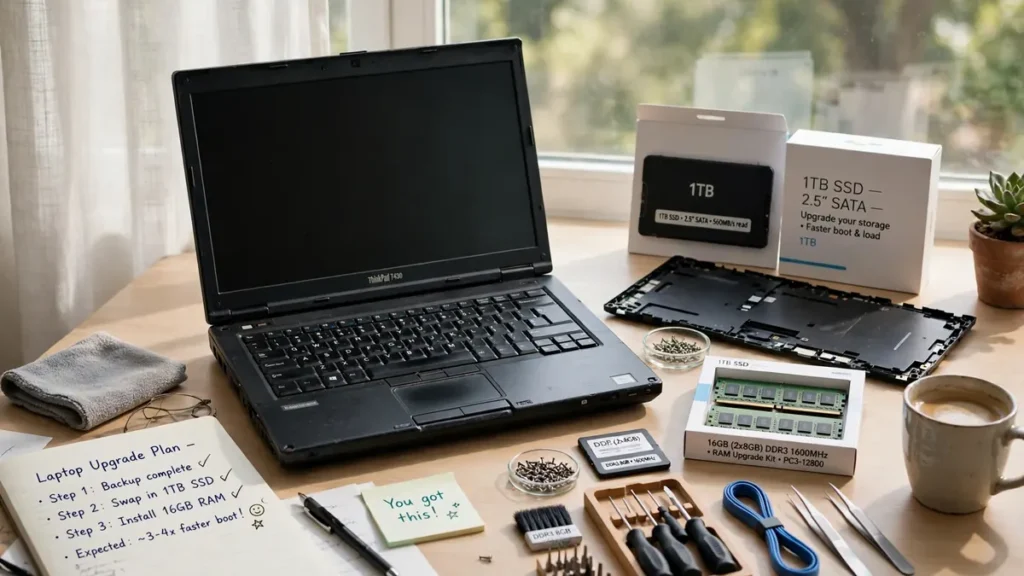
7. Upgrade to an SSD (If You’re Still on an HDD)
This is the single most effective and budget-friendly upgrade you can make. Most older laptops still use a mechanical HDD, which drastically slows down boot times and app loading.
- A 240GB-480GB SATA SSD costs as little as $20-$35
- Installing one can reduce boot time from 2 minutes down to 15-20 seconds
- Tools like Macrium Reflect let you migrate Windows to the new SSD — no reinstall required
8. Upgrade RAM (If Your Laptop Supports It)
If your laptop is running on 4GB of RAM and you use multiple tabs or apps at once, upgrading to 8GB or 16GB makes a huge difference. Most laptops have at least one accessible RAM slot that makes this an easy upgrade.
9. Keep Windows and Drivers Updated
Outdated drivers, especially graphics and chipset drivers, are a common hidden cause of performance issues. While you’re updating, take a moment to secure your home WiFi network as well.
- Go to Settings > Windows Update and install the latest updates
- Download the latest drivers directly from your manufacturer’s website (Dell, HP, Lenovo, ASUS)
10. Switch Your Power Plan to “Best Performance”
Many laptops ship with a default “Balanced” or “Power Saver” plan, which artificially limits performance.
- Go to Control Panel > Power Options
- Select “High Performance” or “Best Performance” (this will drain the battery faster, so use it while plugged in)
Conclusion
Reinstalling Windows should be your last resort, not your first move, when trying to fix a slow laptop. The steps above — especially an SSD upgrade and disabling startup programs — make a noticeable difference in 90% of cases, without any data loss or lengthy setup.
If your laptop is still slow after trying all of these, it’s likely that the hardware (CPU/RAM) has simply become too old for modern software — and an upgrade would be the better long-term option.